Agent map and Search
Maintain the agent map of context nodes, file mappings, and edges, and search across your projects.
Last updated:
On this page
The Agent map is where you maintain the spec map: the set of context nodes that connected agents read to learn what your project should be. Search finds text across your projects, phases (stages of work), tickets (units of work inside a phase), and context nodes, and opens the matching item.
Where to find it
- Agent map is the third tab of the Spec Editor, after Spec and Architecture. Press
Ctrl+6to open it. - Search is the last item in the sidebar. Press
Ctrl+/orCtrl+K.
Panel shortcuts do nothing while the cursor is in a text field or editor.
What a context node is
A context node is one entry in the spec map: a piece of guidance an agent should know, such as a feature spec, a rule, or a reference document. The spec map is the full set of active nodes for a project.
| Part | What it means |
|---|---|
| Name | A short label, such as auth-rules. |
| Type | Rule (a must-follow instruction), Spec (requirements and design text), or Standard (reference material such as config, docs and conventions). |
| Scope level | Project, Domain, or Feature. Scope labels where a node applies. Agents see active nodes whatever their scope. |
| Scope name | The area a domain or feature node covers, such as auth. Blank for project scope. |
| Content | The text the agent reads. |
| Active | A switch. Agents cannot see, open, or search inactive nodes. |
Agents also see a summary (the first non-empty line, cut at 120 characters) and a token estimate (content length in characters divided by 4).
Where nodes come from
- Project import. Items you approve during import become nodes. Items in the specification category become
specnodes. Every other category, including architecture docs, becomes astandardnode, except tech stack items, which merge into the project's tech stack. - The Spec Editor. The project description, goal, tech stack, and non-goals each become a
specnode, and each constraint becomes arulenode. Vibeless keeps these in step with the Spec Editor. - This tab. You add nodes by hand with Add node.
The architecture document on the Architecture tab is also given to agents, but it is edited only on that tab and does not appear in the Agent map.
Nothing is added to the map automatically from file changes. The file watcher and git monitor see new files, but no file becomes a node until a person adds it in the app. The map describes what the project should be, so an agent must not be able to change it by writing files.
What you see
- Header. A one-line description of how your agent reads the map, and the What the agent sees button. A dismissible How agents use this hint appears below it until you close it.
- Toolbar. A type filter (All types, Rule, Spec, Standard) and Add node.
- Node list. Nodes grouped by where they came from: From spec, Imported from repo, and Written by you, each with a count. Within a group, rules come first, then specs, each by name. Standards are folded into a collapsed line such as "12 standards" that you expand. Each row shows the active switch, name, type badge, a scope badge for domain and feature nodes, and a one-line content preview. The pencil icon edits the node; the trash icon deletes it.
- Hidden from agents. A muted row with this label is a node the agent's map leaves out, such as a lockfile or a
tsconfigfile (see below). It stays fully editable. - Edges card. On the right, showing the links for the selected node.
- Scope suggestions card. Appears below the node list when a
projectnode's file mapping points at one specific area of the code, and proposes a tighter scope.
When the map has no nodes, the tab reads "No nodes in the agent map yet" and offers Import from repository and Add node. See Importing an existing project.
How to use it
Add or edit a node
- Select Add node, or the pencil icon on a row.
- Fill in Name, Type, Scope level, Scope name, and Content. Under Content, the form shows the summary line agents will see.
- Select Create node (or Save changes).
A name is required. For the rule type, the form notes: "Must-follow instruction. Agents see it in the map like any other node."
The VC button at the top of the sheet opens VC Copilot, an assistant that reads your draft. It is an LLM feature, so it needs a paid plan and uses credits.
Nodes from the spec
Nodes in the From spec group mirror the Spec Editor, so they are read-only here. Their pencil icon opens a Spec node view with an Edit in the spec editor button. While such a node is active, its switch is locked on and it has no trash icon. A spec node whose field is empty is switched off; fill in the field in the Spec Editor to show it to agents. File mappings and edges on spec nodes stay editable here.
Map files to a node
File mappings tie a glob pattern (such as src/auth/**/*.ts) to a node, telling Vibeless which files that node governs.
- Open the node with the pencil icon.
- In File mappings, type a glob pattern.
- Select the plus button.
A new node has to be saved before you can add mappings; until then the section reads "Save the node first to add file mappings." To remove a mapping, select its trash icon and confirm.
Mappings decide which code an agent is pointed to for a node, and they feed automatic edges.
Scope suggestions, switching off, and deleting
Each scope suggestion shows the node, its glob, a proposed level, and a proposed name. Adjust them, then select Apply or Dismiss. Dismissed suggestions return the next time you open the panel.
Use a node's switch to hide it from agents without losing it. Switched off, the node is left out of the agent's map, its search, and vibeless_get_node. The trash icon deletes a node after you confirm in the "Delete this node?" dialog.
See what the agent sees
Select What the agent sees to open the map exactly as vibeless_declare_intent hands it to an agent. The sheet shows when the map was last updated, any stale-map warning the agent would get, and each node's name, type, summary and token estimate. Hidden config and entry files are counted; select Show hidden to list them, dimmed. Above 150 nodes the agent gets groups by type and scope instead, and the sheet shows those groups.
Paste a ticket description into Try a ticket description to see the Suggested starting points the agent would get for it. Raw response shows the full payload.
Edges
An edge is a link between two nodes. Agents use edges to find related guidance, and Vibeless uses them to rank suggestions. Select a node to see its edges.
| Relationship | Meaning |
|---|---|
| Depends on | This node relies on the other one. |
| Related to | The two nodes cover overlapping ground. |
| Conflicts with | The two nodes contradict each other. |
| Supersedes | This node replaces the other one. |
To add an edge, pick the other node in Choose a node to link (type to search by name), pick a relationship, and select the plus button. The edge list names the other node, for example "Depends on → auth-rules".
Vibeless also derives edges itself, without an LLM. These show an auto badge with a confidence percentage, and are created at 60% confidence or more. The evidence comes from 3 checks:
- Code in one node's mapped files imports code in another node's mapped files (
depends_on). - One node's content mentions another node's name or scope (
depends_on). - Two nodes' file mappings cover overlapping files (
related_to).
Automatic edges only link nodes that already exist and never change a node. Edges you create by hand are left alone.
When the evidence for an automatic edge disappears, Vibeless lists it under Pending edge removals instead of deleting it. Select Accept to remove it or Reject to keep it. Re-derive runs the check now and reports how many edges were added, refreshed, and proposed for removal. If you delete an automatic edge by hand while its evidence still holds, the next run adds it back.
Search
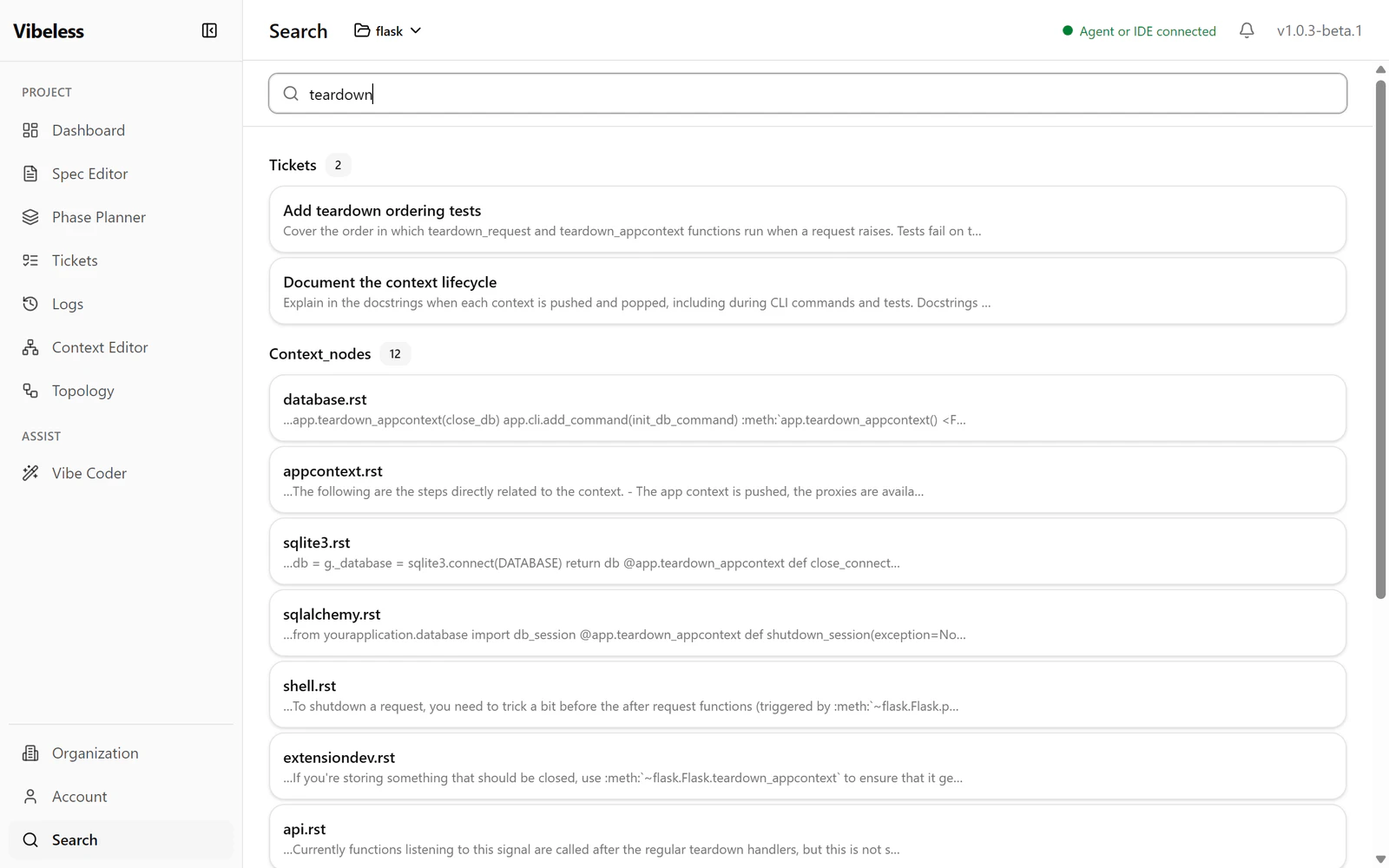
- Open Search and type at least 2 characters.
- Results appear grouped by type, each with its name and a short excerpt around the match.
- Select a result to open it.
 (opens full size in a new tab)
Search covers projects (their spec fields), phases, tickets, and context nodes. A multi-word query matches items containing any of the words. Ranking uses BM25, a standard relevance score, so items with more of your words, or rarer ones, rank higher. Word forms match, so "running" finds "run". Search shows at most 20 results; refine the query if you need more.
A project result opens the Spec Editor. A phase opens the Phase Planner with that phase selected. A ticket opens Tickets with that ticket selected. A context node opens the Agent map with that node selected. A hit on the architecture document is labeled Architecture document and opens the Architecture tab.
Search looks at the open project by default (This project). Select All projects to search every project stored on this computer. Selecting a result does not switch the open project.
How it connects to agents
Agents never receive the whole map's content at once. They get an index, then open what they need.
vibeless_declare_intent. The agent states what it is working on. Vibeless returns the project map, up to 5 suggested starting points, and a freshness check. The map lists every active node with name, type, scope level, summary, and token estimate. Above 150 visible nodes, the map lists only node counts per type and scope level instead of each node. Suggestions are ranked by text match with the description, whether the node is linked to an open ticket, recency, and scope specificity; nodes linked bydepends_onorrelated_toedges inherit part of the score. Code from the topology whose files match a suggested node's file mappings is listed too. The map is authoritative; suggestions are guesses.- Freshness warning. The map is flagged as possibly stale when no active node has been updated in 7 days or more, or when the map is empty. The agent then sees a warning first, telling it to treat suggestions as hints and check the code.
- Hidden config and entry files. The map hides
standardnodes for lockfiles,tsconfig*.json,vite.config.*,*.config.tsand similar,index.*andmain.*entry files, and nested duplicateCLAUDE.mdorAGENTS.mdfiles. The agent is told how many are hidden and can passinclude_hidden=trueto list them.specandrulenodes are never hidden, and the Agent map shows everything, with the hidden ones marked Hidden from agents. vibeless_get_node. Opens one node. A context node with more than 8 KB of content returns an outline of its headings first; the agent then requests sections, the full text, or numbered chunks when there are no headings.vibeless_search_specs. The same search as the panel, limited to the agent's project, with the same 20-result cap. With the optionalprojectargument it searches a related project instead (see Related projects).vibeless_spec_neighbors. Lists a node's edges, plus the code-graph nodes and repository files its file mappings match. It returns no content.
Agents can read the spec map but cannot write to it. Nodes, edges, and file mappings change only in the app.
Rules and limits
- Nodes created from the Spec Editor belong to it. They are read-only in the Agent map; edit them in the Spec Editor. While active, they cannot be switched off or deleted here.
- Inactive nodes are invisible to agents and do not count toward the freshness check.
- Search returns at most 20 results, in the app and for agents.
- VC Copilot needs a paid plan. The free plan has no LLM features.
If something looks wrong
- The agent warns that the map may be stale. Update the nodes that cover recent work. The warning clears once an active node was updated within 7 days.
- A config file is missing from the agent's map. It is probably hidden. The agent can call
vibeless_declare_intentwithinclude_hidden=true. - You cannot edit a goal or constraint node. Those nodes mirror the Spec Editor. Select Edit in the spec editor and make the change there.
- A deleted edge came back. It was automatic and its evidence still holds. Change the file mappings or content that produce it.
- Search finds nothing. Type at least 2 characters, and check whether This project or All projects is selected. Search does not cover decisions or hooks.